Showing posts with label Safari. Show all posts

Wednesday, 28 September 2022

iOS 16 - Breaking Down the Biomes (Part 4) - Surfin' with Safari

 Oh Safari, I once thought your worst change was moving the navigation bar to the bottom of the screen. Turns out you said "Hold My Beer" with iOS 16 and decided to throw some switcharoos on us. To be honest, Safari has always been an interesting albeit annoying browser for iOS. It has some pretty strict limits when it comes to storing data including keeping history for only 30 days and downloads for 24 hours. It also mimics its history over into the KnowledgeC database which is great when you're trying to confirm that history came from a specific device (and the origin column isn't available that is). 

As this series has explored though, KnowledgeC has changed. Also, KnowledgeC syncs now so that means using it to show device attribution may be difficult too. That being said, the new biome changes give us some flexibility with this as well as give us some new artifacts to track through as well on top of the old favorites.


Safari History

The previous /safari/history data from the ZSTREAMNAME column of KnowledgeC has gone missing and been replaced with a biome: _DKEvent.Safari.History which can be found within /private/var/db/biome/streams/restricted/. This file is going to contain a lot of the same protobuf structure as mentioned previously, but there are some more interesting things going on here with Safari too. First, let's break down the protobuf within the SEGB file. 


Like many other protobuf records before it in the post series, this one will store an identifier "/safari/history" as well as a date and time in Apple Time format. IMPORTANT NOTE: In my testing, the dates and time listed in the beginning of the file appear to be DIFFERENT from the main Safari History.db file records. They seem to only be off by a few seconds but they are coming AFTER the record within the Safari database. The URL for the page is recorded as well as the title of the page later down the protobuf. 

The other important thing to note about the SEGB files is that where previously the KnowledgeC database records confirmed this came from one device, the location of the SEGB files within the biome directory can confirm if these records were generated on this device or on other devices. Remember that any file within the local directory came from the local device while SEGB files within the remote directory were synced to this device from others. 

But what happens when Safari history is cleared? Or if the data is viewed in private browsing mode? When the Safari history is manually cleared from the settings application in iOS, it triggers some deletions within the biome for Safari history. In testing, a tombstone record (a separate SEGB file cerated within he tombstone folder) got created during the destruction event and records were written to it but they did NOT contain the original URLs. 

In addition to the tombstone file being created, there is also changes to the original SEGB files too. What is interesting is that the records are modified in place, and not just simply destroyed or the entire file replaced. Each individual protobuf is written over and replaced with 0x00 within the leftover bytes. 

What makes this even more interesting is what happens when you delete individual records, not through the Settings app, but through the history area of the Safari browser. When this is done, the record within the SEGB file will NOT get removed immediately or overwritten. 


Now, when the same area of Safari issued to purge ALL the history, it has the same response as when you clear it from the Settings. The records in place within the local/{SEGB} file get overwritten with 0x00. 

BEFORE

AFTER


So to recap: delete ALL the records, SEGB gets overwritten; delete individual records, SEGB does NOT get overwritten. 

It should also be noted that records that are done in private browsing tabs never seem to get written to the SEGB files in the first place. This doesn't mean they can't be recovered, but we'll get to that later. 

One last thing to mention on this, is that if you don't also close the tabs, there might still be traces of the data behind even after the HISTORY is cleared. 

SafariPageView

The SafariPageView biome can also contain pieces of the safari history, but can give more context to the URLs. The SafariPageView biome will record the page's textual content without any formatting or images. This allows the examiner to see some of the content of the page as well as use this as a great place to get keyword hits back. 

The data will contain a date and time of when the information is "donated" to the biome, the title of the page, and the textual content of the website. These protobufs can be large, but at the end of the data should be the URL that this content belongs to. 


Aligning with the history, private browsing mode records did not appear in this file and after a full deletion of the history these records were also purged. 

Shared With You 

The "Shared With You" feature that was added in iOS 15 also lives within the biome data so we might as well break that down here since I haven't seen a lot on it. Records that are shared via iMessage show up in separate "Shared With You" areas depending on the content that is sent. For Safari, these website shared from contacts via iMessage will appear on the new tab Home Screen. More information on Shared With You can be found on Apple's website here


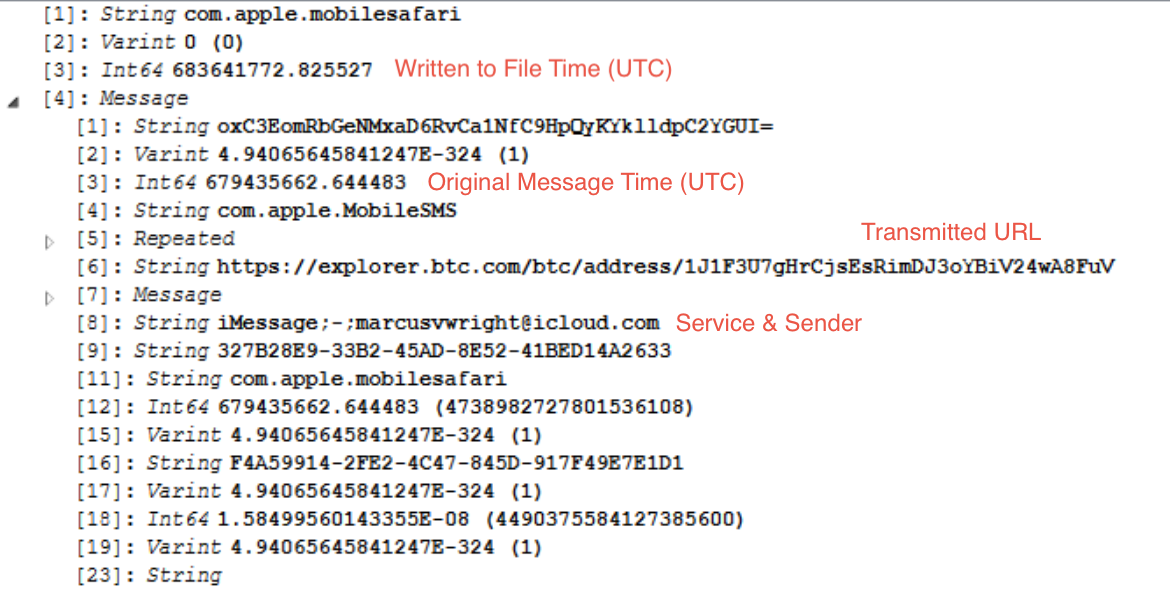
The records are stored within a SEGB file in the location /private/var/mobile/Library/Biome/streams/restricted/feedbackSocialHightlights. There are both local and remote subdirectories in this location. The URLs that are shared as well as who did the sharing are available within the protobuf records inside this file. 


Note there are two timestamp records inside the protobuf. In fact, there will be multiple records of the same shared URL in the SEGB file in separate protobufs. The first timestamp is the written time to the SEGB file while the second timestamp stored within the main Message block is when the message was sent. 

Speaking of Shared With You data, each application that can handle that information will react differently. For information on how the Photos app is handling it, go check out Scott's post on it over here.  

Some Other Safari Stuff!

Let's face it. I love tracking Safari information. I've done multiple posts on Safari information and some webinars. I might as well take the opportunity to share some information on some more recent Safari changes. Unlike the biome data which can only be extracted from file system level examinations, this one is going to be available in Quick style images as well. 

In many versions of iOS, turning the BrowserState.db was a great location to go and find records of websites that were beyond 30 days old as well as records of private browsing history. This is still partially true, but not the only place to look anymore. The BrowserState.db will continue to track tabs from iOS 15 that has been restored to iOS 16 devices but will also now only track tabs once they have been closed. 

The new go-to spot for currently open tabs is in the same directory (private/var/mobile/Library/Safari) but called SafariTabs.db. The bookmarks table will store information relating to all of the currently open tabs. The first key is understanding how to categorize the tabs. 


The parent column for all of the following tab information will reflect the "id" column value that relates to one of the above shown categories. This allows us to track pinned, recently closed, local, and even private browsing records within this database. 


In the above screenshot you can see that id 12 relates to a page that is in private browsing mode while id 13 relates to parent 10 which is our "local" meaning just standard tab. The "order_index" column tracks the order the tabs were opened and you may see repeat values because of both normal and private browsing tabs. 

There are two BLOBS in the bookmark table, extra_attributes and local_attributes. The local_attributes BLOB is the most important as it will store information about the tab itself as well as all of its session data. These BLOBs are binary plist files.


The BLOB data contains good information such as the LastVisitTime but the "SessionState" key is what we're really after here. This contains ANOTHER binary plist file, but like the old BrowserState.db used to do to us, this is not all it stores. The first 4 bytes are actually padding so you can't just save the bytes of the SessionState key as a plist then open it normally. After removing the extra padding, the file can then be opened in your plist program of choice. 


Conclusion

Safari certainly knows how to keep it interesting for us, doesn't it? Even though we have lost the Safari history data within KnowledgeC, the web usage data is still there so that's a start. By parsing the biome data we are able to get the information we lost from KnowledgeC and then some! The PageView has been an interesting one for me and I'm curious to see how many folks will find that contextual keyword that helps their case when getting a look at what the user may have seen on the page. 

There's also the newer Shared With You (Me?) data that we can track now too thanks to our biome information. This is handle especially when tracking potentially deleted messages that might still leave the links behind. 

Speaking of deleted, it was really interesting (for me at least because I'm a big nerd) to see how the biome data is treating Safari history when it's individually removed versus removing the entire history. Combine that with not tracking the private mode data and it's really going to be an "it depends" situation for us, but we're used to those right? 

Finally, speaking of private mode, Apple didn't TOTALLY leave us out with that one. While the BrowserState.db's function has seemed to change a bit at least now we can track the same information in a separate database with a little bit of additional digging. Surf safely friends! Until next time!


Tuesday, 15 September 2020

macOS - Safari Preferences and Privacy

Apple is about to release two new OS upgrades in the form of iOS 14 and macOS 11 (whoa, that's weird to say) this fall. With new OS versions is always going to come a lot of new artifact testing. I've always been fascinated with tracking browser preferences and due to the nature of how Safari operates, I feel that it's one of the most important browsers to track and understand the preferences of. 

Apple likes to make sure that there's a level of protection between a user and granting permission for an application to do something. This is tracked as part of Apple's "Transparency, Consent, and Control" and tracked within the TCC.db across macOS and iOS. These databases are always a hot point of investigation for me because I'm always curious as to what permissions the application has asked for, as well as what permissions the user has granted. This can help guide me toward specific things to look for that may have been generated by an application. 

For Safari, Apple also wants to extend that same protection and control to its users. This is done in the form of pop-ups that appear at the top of Safari asking a user if they want to extend specific preferences for a website to do a specific task. In the days of online conferencing and video chatting, its important to know if a site has been asking for certain information from the user and whether or not the user has accepted. But I'm getting ahead of myself. Let's start at 0. 

Recently I got an update notification for Safari 14. Safari 14 is the version that will ship as part of iOS 14 and macOS 11. After updating, I started checking on some preferences to make sure they hadn't moved. Earlier this summer, I wrote a blog post on the main Magnet Forensics' blog to discuss some of my findings on Safari preference data. (Link: ) I figured that with Safari 14 updated, it's good to just revamp the post and give everyone a rundown of location values of specific files and how they can play info your investigations. 


Let's start with a baseline. Safari, by default, records the following preferences: 
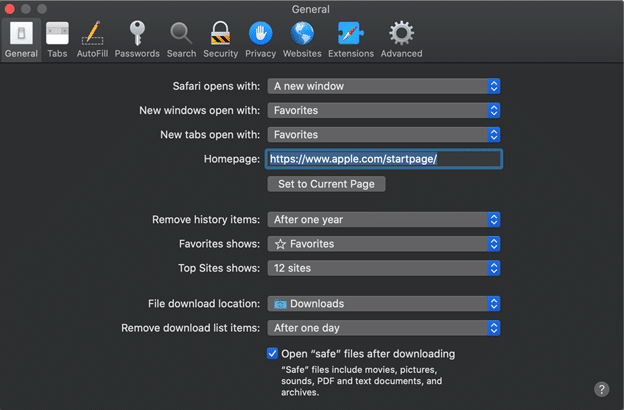

The biggest issues we see here is how the default settings can complicate an investigation. Three points specifically I always like to mention when it comes to active investigations are as follows: 

  • History: Safari for macOS will only keep 1 years worth of web history (by default). This differs from the 30 days of history that iOS keeps. 
  • Downloads: Safari only tracks the last 20 downloads in the Downloads.plist file, but this setting keeps that information only to the last 1 day as well. Meaning that by default only the last day's downloads will be available for review. 
  • Open Safe Files: If you're trying to prove if the user "opened" a file this can complicate things. Items that Gatekeeper deems "safe" it will automatically open after download. (Gee officer, I didn't know that video had bad stuff in it. I never played it.) Safari could still open a file FOR the user even if the user never intended to. 
These preferences can be found in ~/Library/Containers/com.apple.Safari/Data/Library/Preferences/com.apple.Safari.plist. 

The interesting thing about this plist file is that many of the preferences will NOT be present in this file if they have never been changed from the default. For example, if the user has never changed the following settings, there will not be a record referencing them in the plist: 
  • History Storage Time
  • Download Storage Time
  • Download Locations
  • Search Engine
  • Open "Safe" Files setting

For this next test I have gone through and changed a bunch of settings. You can see the new settings here: 


Changing the settings then presents several new keys that aren't in the original file. Doing a side-by-side comparison of the original to the new gives me several interesting values to track. The following values were added to my plist file only after they were changed. [Note: I just realized HomePage snuck in there. That one is always present even if it's the default. Sorry!] After I changed them back to their default values, they still remained present in the file. Presence of one of these keys means that a user has changed from the default before! 


The DownloadsClearingPolicy is obviously not a boolean like some of the others. It references the value in the dropdown for the preference for "Remove history items: " in the Safari preferences window. 


When Safari Quits = 1
Upon successful download = 2 
Manually = 0
After one day = 3 [Default]

SearchProviderIdentifier is referencing one of the listed search engines on the Search tab of preferences. 


Remove history items will reflect the number of days it's supposed to keep it with 365,000 being the option for  "Manually." 

Now on to the site preferences managed for each URL that we visit. Every time a location requests one of several permissions, a user is presented with a pop-up window at the top of Safari to either allow or deny said permission (just like our applications). 


Some of these preferences are managed within a database, while others are managed in plist files. Regardless, all of the per-site preference managing files can be found in the directory ~/Libary/Safari/ and we'll evaluate each of the files for their goodies below. If a user goes to the Websites tab of their Safari preferences they can see a listing of all the requested permissions on the left as well as what website was granted/asked/denied permission on the right. It is important to realize that some permissions are NOT granted permanently and must be accepted each and every time. This could explain why information is not always present in these files. 


The first place to check is the PerSitePreferences.db file found within ~/Library/Safari. This file tracks the bulk of the preferences. Preferences can be found in the preference_values table and the ones I've been able to map so far are: 
  • PerSitePreferencesPopUpWindow
  • PerSitePreferencesGeolocation
  • PerSitePreferencesDownloads
  • PerSitePreferencesAutoplay
I think the first three preferences will be the most frequent ones requested by web sites (at least in my browsing experience). Downloads was the heaviest populated because every time a file wanted to be downloaded, it first had to pass a test. NOTE: When the Global preference for "Ask every time" on download location was set, this did NOT ask for permission and did not populate in the database. That's a big one to check for before getting here. 

Each value is listed in the database table with a domain, preference, preference_value, and a timestamp value. In my testing the timestamp was always NULL. The preference_value reflects a 0, 1, or 2. These numbers however change for what the preference is reflecting (ugh...). 

For PerSitePreferencesDownloads:
  • Allow = 0
  • Ask = 1
  • Deny = 2
For PerSitePreferencesPopUpWindow: 
  • Block = 1
  • Allow = 2 
For PerSitePreferencesGeolocation: 
  • Ask = 0
  • Deny = 1 
  • Allow = 2 
For PerSitePreferencesAutoPlay: 
  • Allow All Auto-Play = 0
  • Stop Media with Sound = 1 
  • Never Auto-Play = 2
The next preference file is to track the Page Zoom. While possibly not the most important, we're here, so we might as well take a look. This is tracked within the PerSiteZoomPreferences.plist inside the same Safari directory. Each URL will be listed along with a PageZoom and TextZoom value. These values are represented in smaller numbers but correspond to a percentage (ie 1.15 = 115% and 1.75 = 175%). 


The Notifications permission is tracked in the UserNotificationPermissions.plist file in the same directory. This files uses a boolean value to track whether or not notifications are allowed to pass through to the macOS Notification Center from Safari as well as when this permission was added by the user. 0 = Deny / 1 = Allow


And now, the moment you've been waiting for. How do we track if Safari has permission to use my Camera, Microphone, or to share my screen? With all of the web-based conferencing and video calling going on, I felt like this one was the most fascinating. Once I got into how Apple was storing the data, it was!

All three permissions can be tracked using the UserMediaPermission.plist file. Regardless of what permission has been allowed or denied, it will be given a listing in this file. A URL and a timestamp recorded in Apple/Mac Absolute Time will be listed for when the permission was granted and expires. The permission value however is actually a bit mask (which is a fun term a developer recently taught me). Essentially, each value is assigned a number and then that number corresponds to possibly one or more values added together. Some values didn't appear to be used in my testing. 

1 = ???
2 = Deny [Microphone]
4 = Allow [Microphone]
8 = ???
16 = Deny [Camera]
32 = Allow [Camera]
64 = ??? 
128 = Deny [Screenshare]

Note: Permissions for screen sharing can only be set to Deny or Ask. The default value is always Ask and you can't set that causing a value for it to be populated. 

Let's look at some examples. 

Example One: Screensharing is denied. No other permissions changed. 

Example Two: Camera and Microphone are allowed, no other permissions requested. 


Example Three: Camera, Microphone, and Screen Sharing are all denied. 


------------------------------------------------------------------

As promised here's the TL;DR version in chart form. 
Operating System : macOS 10.15.6 / macOS 11
Application: Safari 14.0

Target: Preferences


Where

What

Why

~/Library/Containers/com.apple.Safari/Data/Library/Preferences/

com.apple.Safari.plist

Stores multiple global safari preferences like home page, recent web searches, data and history keep rates, and whether to open files automatically upon download. 

~/Library/Safari

PerSitePreferences.db > preference_values

Stores information on preferences for Downloads, Geolocation, PopUps, and Autoplays.

~/Library/Safari

PerSiteZoomPreferences.plist

Tracks zoom levels for text and page views. 

~/Library/Safari

UserNotificationPreferences.plist

Tracks which URLs are allowed to display notifications. 

~/Library/Safari

UserMediaPreferences.plist

Tracks which websites are allowed/denied permission for Camera, Microphone, or Screen Sharing.