Showing posts with label AppResearch. Show all posts

Monday, 28 September 2020

iOS - Tracking Bundle IDs for Containers, Shared Containers, and Plugins

 In iOS, one of the more vexing things I've found when working through data or helping a student with questions usually comes back to tracking what application is responsible for putting data in a specific place. With some of the fantastic work done by others including Alexis Brignoni (link here) on the ApplicationState.db as part of the FrontBoard directory, it has always become one of my first go-to spots to build a "treasure map" of applications to deal with those annoying AppGUIDs that Apple assigns each app on a device. These annoying things I speak of can be found when you're looking for data in: 

/private/var/mobile/Containers/Data/Application


Luckily, most tools will parse out the ApplicationState.db and map each one of these unique IDs to the application which is stored within. 


Great! So much easier to go and figure out what apps are living where. However sometimes you stumble upon a file of interest within a folder and you're left with the task of matching the directory path to this database. Maybe you're in a situation where you're working with just the raw image and limited access to tools as well. How can we find the app's bundleID from within a directory already? 

Within the application data path, at the root there should be a file ".com.apple.mobile_container_manager.metadata.plist" which seems to be same name in each application directory. This information will contain keys that contain the bundleID of the application which is great if you're in a pinch and don't want to jump back and forth. 

The more interesting thing is what happens when you do a search for this file across your iOS device. If you do, you'll see that the .com.apple.mobile_container_manager.metadata.plist file appears in a lot of places including: 

  • /private/var/containers/Bundle/Application/APPGUID/
  • /private/var/containers/Shared/SystemGroup/APPGUID/
  • /private/var/containers/Data/System/APPGUID/
  • /private/var/mobile/Containers/Shared/AppGroup/APPGUID/
  • /private/var/mobile/Containers/Data/Application/APPGUID [duh]
  • /private/var/mobile/Containers/Data/InternalDaemon/APPGUID/
  • /private/var/mobile/Containers/Data/PluginKitPlugin/APPGUID/


Whoa. That's a lot more places for us to explore to make our treasure map. So what is this file anyway? First, let's talk about Sandboxing. Apple heavily utilities sandboxing in iOS. This is to prevent applications from getting access to data they're not supposed to have access to. Each application is given its own sandbox to play in and only that area to play in. This plist file allows us to see what sandbox we're in and who owns that sandbox from an application perspective. Using this information, we can break down a little bit more of this path information above to figure out why certain apps may be keeping data in a location. 


/private/var/containers/Bundle/Application/

This directory is where the .app lives on the device. There's some additional data we can track here about the application itself and who downloaded it onto the device. Along with the .app, there's an iTunesMetadata and BundleMetadata plist file that can list out information such as when the application was downloaded, what version of the app was downloaded, and what AppleID actually downloaded it. 


/private/var/containers/Shared/SystemGroup/

This directory is similar to the one above, but speaks to core applications of the iOS device. There's less information in here but still a .plist file that can reveal what system application is responsible for the container. 

/private/var/containers/Data/System/

Again, similar to the directory above, but these seemed to be system apps that didn't want to share information between core applications. Again, less relevant information except for the bundleID who owns the container. 

/private/var/mobile/Containers/Shared/AppGroup/

Now this is where the REAL fun begins! I mentioned sandboxing earlier. Apple says that applications are not allowed to share information without requesting it through official channels first. In order to share information, application developers can assign a "group" to their application. According to Apple's developer information, these groups can then share data between each other. You may have also seen these in backup-style images that are listed as "AppDomainGroup-group.bundleID" instead of the "AppDomain-com.bundle.ID" structure. I have often used this path when I couldn't find the data I was looking for in the main Application Data path. 

Now for the downside. The ApplicationState.db doesn't contain information about this path. The upside? Each application's "Shared/AppGroup" directory will have one of our .com.apple.mobile_container_manager.metadata.plist files! Woohoo! To make it even better, Alexis Brignoni has built support into iLeapp in order to list out out all of these files from this directory allowing us to match the contents of the file to the path it lives in. [Get iLeapp here]

An application may also have more than one folder in this path. A couple of examples would be the Dropbox application that over 4 different containers here and the Spark email app which had 2. More importantly, some applications may keep all of their relevant data here instead of the /private/var/mobile/Containers/Application/Data/ directory. An example of this would be the Spark email application (iTunes web link) which chooses to store all of its relevant databases within the /private/var/mobile/Containers/Shared/AppGroup/ directory structure instead of the more common /private/var/mobile/Containers/Application/Data/ directory structure. [Other notable examples of this include WhatsApp and Signal]


/private/var/mobile/Containers/Application/Data

The place where we're supposed to look for app data. Well understood and documented. Just, not where we always end up wanting to look after all. 

/private/var/mobile/Containers/Application/InternalDaemon

In my test devices these appeared to be Apple services (or internal daemons, obviously) that could be tracked using the same .com.apple.mobile_container_manager_metadata.plist files. 

/private/var/mobile/Containers/Application/PluginKitPlugin/

I've had two situations recently that I've been assisting students with to understand where crucial data to their cases has wound up within this area. Populating exact matching data here is difficult but a few situations arose in which I was able to track a good bit of information. Because Apple is allowing applications to use plugins to tie together (think of the Giphy keyboard, my personal favorite), these plugins can keep data within this directory structure. One test case was to figure out why a bunch of illicit videos were showing up within a specific directory. By using the .com.apple.mobile_container_manager.metadata.plist file, the analyst was able to figure out what plugin was helping to put data in this directory and what bundleID the plugin belonged to. In this case, it was tied to com.apple.mobileslideshow's PhotoMessagesApp.


Note: com.apple.mobileslideshow is the Photos application on iOS. 

Now that we know what plugin and what application the directory belongs to, we can then go out and try to generate data to prove how this information gets in here. In my example, I used the photo picker plugin within iMessage and then modified the video directly within that plugin without launching the original com.apple.mobileslideshow application. Using KnowledgeC, you can see in the following screenshots that when these files were created within the PluginKitPlugin/APPGUID/ directory structure that the MobileSMS application and other plugins overlap. 


Other plugins such as 'com.apple.mobileslideshow.photo-picker' have come up in other investigations but sometimes it's difficult to populate these directories without KnowledgeC or PowerLog to go on. By at least understanding the owning BundleID, we can start to understand possibilities for how data got where it is. 

Now we have a better way to build out our own treasure maps as well as now knowing that .com.apple.mobile_container_manager.metadata.plist files are typically going to provide the "X" that marks the spot. 

Thursday, 10 September 2020

iOS - Files App Part Deux: Quick Images and A Chart!

 In the first post of this week I detailed a lot of the paths you might want to use if you're using a full filesystem image of an iOS device. I also detailed several ways to find this information using a live test device. In this post I want to circle around and talk about what you can hope to find from the Files app in the more common "Quick" image format or the iTunes-backup formatted image type. A lot of the same areas are going to be there, just under some different names. 


Tracking the Files App Storage: 

Instead of using the ApplicationState.db file to go and find the APPID paths, we really just need to rely on the bundleID for the Files app. There's a couple of ways we can track this, so I'll start from zero. Let's say you know the name of the App is "Files" but don't already know the bundleID. How can we find it? Unlike the Google App Store, there's no easy web store we can go to and just search for apps. What we need to do is perform a little google-shenanigans by searching for something like "iOS Files App Store." Doing so will return the online App Store preview page as the first result. You can click here to see this one. The URL for this is going to be: https://apps.apple.com/us/app/files/id1232058109 and that's going to be important to us. The numerical identifier after "id" in the above URL is what we need. So we're going to copy that piece out. 

Next we're going to navigate to the following URL: https://itunes.apple.com/lookup?id=[IDValue] replacing that value we took from the previous URL and putting it where you see "IDValue." Navigating to this page is going to trigger a download within your browser of a text file. 

Opening said text file, we want to look for the word, bundleID. I've copied some additional information so you can see what's around it but here's what we're looking for: 

"artistName":"Apple", "genres":["Utilities"], "bundleId":"com.apple.DocumentsApp", "sellerName":"Apple Inc.", "version":"1.3.3"

Okay, now the cheater method. You could also just go to https://offcornerdev.com/bundleid.html and just search for your app too. 

Now that we have our bundleID, we want to turn back over to our iTunes backup style image and head over to the Manifest.db. Every forensic tool seems to handle these iTunes-style backups a bit differently, so by heading to the Manifest.db we can at least learn the core information about where we want to go.     


Now that we know the bundleID, I'm just going to search for this ID in my file explorer to navigate through my directories. By going to the main "AppDomain-com.apple.DocumentsApp" directory we're going to find the data mentioned in the previous post for the 'Inbox' folder, aka, the files that were AirDropped to our device and accessed using the Files app. 


Some of the data was also stored in the "Shared/AppGroup" directory structure of our full filesystem image. So we're going to need to tweak our search a little bit. We know that there was a database that was a lot of help called "smartfolders.db" so we're going to turn back to the Manifest.db file and look for it there. That's going to return a domain of "AppDomainGroup-group.com.apple.DocumentManager" [whew what a mouthful]. The smartfolders.db is the only thing in this directory but still acts the same as it did in our full filesystem image. 

The next thing to track the directory where the files were stored that weren't AirDropped, as well as the directory structure and .Trash folder we found earlier. To do this I'm going to cheat a bit and use the Manifest.db file again to just search for my test folder "Cade." 


Another bit of a mouthful but it looks like we need to hunt down "AppDomainGroup-group.com.apple.FileProvider.LocalStorage" to find our data tracking back to the 'On My iPad' storage of the Files app. This keeps the File Provider Storage folder with the directory store built by the user and the .Trash folder intact. So yes, files the user THOUGHT they deleted, are still very much there. 


How about the iCloud Drive stored data we found earlier? This information is going to be stored in the HomeDomain under "HomeDomain-Library/Application Support/CloudDocs" but not all that we want is here. The client.db and server.db that will list out information that will be stored in iCloud Drive, files that were uploaded from this device, and the devices that can sync with this iCloud Drive are all here. For the Mobile Documents we need to head up a level within the same domain. As with some of the previous paths, some of the information is missing but the really good stuff is here. Within the HomeDomain-Library/Mobile Documents directory you can find the com~apple~CloudDocs folder that's going to store our files stored in iCloud Drive, the .Trash folder, and the Downloads folder for Safari. 


The only thing completely missing is going to be the data we found that was attached to the Dropbox tied to the Files app. While some data was still available within the Dropbox app that shows us the names of files that may be in the user's Dropbox and some user information for what account is signed in, the physical files themselves were missing from the Quick image. 


One of my colleagues, and proud to say friends, Alexis Brignoni mentioned that it would be helpful to create a chart at the end of the post that would highlight the paths for the artifacts to help people retain a quick access list for easy access. I completely agree and will strive to end each of my artifact-based posts with a quick chart of the paths mentioned!

---------------------------------------------------------------------

Operating System: iOS [13.7]

App Name: Files

BundleID: com.apple.DocumentsApp

Image Type: Full Filesystem

Where?

What?

Why?

private/var/mobile/Containers/Data/Application/[com.apple.DocumentsApp Data ID]/Documents/Inbox/

*.*

Files that were AirDropped to device and accessed with Files app.

private/var/mobile/Containers/Shared/AppGroup/[com.apple.DocumentsApp Shared ID]/

smartfolders.db

Stores a listing of locally stored files/folders and types.

/private/var/mobile/Containers/Shared/AppGroup/[group.com.apple.FileProvider.LocalStorage Shared ID]/File Provider Storage/

*.*

All of the files stored locally on the ‘On My iPhone/iPad’ section of the Files app. 

/private/var/mobile/Containers/Shared/AppGroup/[group.com.apple.FileProvider.LocalStorage Shared ID]/File Provider Storage/

.Trash

The files deleted by the user from the ‘On My iPhone/iPad’ section of the Files app. 

private/var/mobile/Library/Mobile Documents/com~apple~CloudDocs/

*.*

Files stored locally on the device from the iCloud Drive

private/var/mobile/Library/Mobile Documents/com~apple~CloudDocs/

.[Filename.ext].icloud

Plist file holding information about files in iCloud Drive NOT stored locally. 

private/var/mobile/Library/Mobile Documents/com~apple~CloudDocs/

Downloads

Files downloaded by Safari

private/var/mobile/Library/Mobile Documents/com~apple~CloudDocs/

.Trash

Files deleted from the iCloud Drive. 

/private/var/mobile/Library/Application Support/CloudDocs

account.1

DSID of User’s AppleID

/private/var/mobile/Library/Application Support/CloudDocs/session/db

Server.db > devices

Device names that are able to sync to iCloud Drive

/private/var/mobile/Library/Application Support/CloudDocs

Client.db > client_items

Items stored in iCloud Drive with metadata about files. 

/private/var/mobile/Library/Application Support/CloudDocs

Client.db > client_uploads

Items uploaded to iCloud Drive from this device.


Image Type: iTunes-style Backup / Quick Image


Where?

What?

Why?

AppDomain-com.apple.DocumentsApp/Documents/Inbox

*.*

Files airdropped to the device stored in the ‘On My iPhone/iPad’ section of the Files app. 

AppDomainGroup-group.com.apple.DocumentManager

smartfolders.db

Stores a listing of locally stored files/folders and types.

AppDomainGroup-group.com/apple/FileProvider.LocalStorage/File Provider Storage/

*.*

Files stored locally on the device as part of the ‘On My iPhone/iPad’ section of the Files app. 

AppDomainGroup-group.com/apple/FileProvider.LocalStorage/File Provider Storage/

.Trash

The files deleted by the user from the ‘On My iPhone/iPad’ section of the Files app. 

HomeDomain/Library/Mobile Documents/com~apple~CloudDocs

*.*

Files stored locally on the device from the iCloud Drive

HomeDomain/Library/Mobile Documents/com~apple~CloudDocs

.[Filename.ext].icloud

Plist file holding information about files in iCloud Drive NOT stored locally. 

HomeDomain/Library/Mobile Documents/com~apple~CloudDocs

Downloads

Files downloaded by Safari

HomeDomain/Library/Mobile Documents/com~apple~CloudDocsDocuments/com~apple~CloudDocs/

.Trash

Files deleted from the iCloud Drive. 

HomeDomain/Library/Application Support/CloudDocs/

account.1

DSID of User’s AppleID

HomeDomain/Library/Application Support/CloudDocs/session/db

Server.db > devices

Device names that are able to sync to iCloud Drive

HomeDomain/Library/Application Support/CloudDocs/session/db

Client.db > client_items

Items stored in iCloud Drive with metadata about files. 

HomeDomain/Library/Application Support/CloudDocs/session/db

Client.db > client_uploads

Items uploaded to iCloud Drive from this device.


Thursday, 3 September 2020

iOS - Tile App Part 2: Custom Artifact Boogaloo

 After the earlier post this week about Tile for iOS, I wanted to circle around and provide some custom artifacts and SQLite queries. It also gave me a chance to work with a good friend and colleague of mine, Alexis Brignoni (@AlexisBrignoni). Let's start with the databases. There are two databases of value held within the Shared data folder: 

  • com.thetileapp.tile-TileNetworkDB.sqlite
  • com.thetileapp.tile-DiscoveredTileDB.sqlite
First is the DiscoveredTileDB database. This file only keeps a little bit of information that we're directly interested in right now, and that's the discovered tile UIDs. We can use this information when looking at the Tile log files because now we can start searching against these logs for these identifiers as well as compare them to the other database that shows which tiles they have "discovered" or been in contact with, that don't belong to our user. This information can be found within the  ZTILENTITY_DISCOVEREDTILE table of the com.thetileapp.tile-DiscoveredTileDB.sqlite file. 


Next up is the TileNetworkDB database. This database has a lot of tables but a couple of them to give us some good information. We can use this table to collect the user information for the signed-in device. The ZTILENITY_USER table will store the email address, phone number, name, and user account of the signed-in user. 

By using two other tables within this database, ZTILENITY_NODE and ZTILENITY_TILESTATE, we can collect all of the user's Tile devices and phones tied to their account as well as some last recorded location and timestamp information. You can use this query to join the tables together: 

Select ZIS_LOST, ZACTIVATION_TIMESTAMP, ZLAST_LOST_TILE_COMMUNITY_CONNECTION, ZREGISTRATION_TIMESTAMP, ZID, ZNAME, ZNODE_TYPE, ZSTATUS, ZALTITUDE, ZLATITUDE, ZLONGITUDE, ZTIMESTAMP FROM ZTILENTITY_NODE INNER JOIN ZTILENTITY_TILESTATE ON ZTILENTITY_NODE.ZTILE_STATE = ZTILENTITY_TILESTATE.Z_PK;

Or, you could use the Custom Artifact found in the Magnet Artifact Exchange


These TileID values can also be found within the log files mentioned within the last post. Let's examine a possible scenario to use this data. 

Scenario: 
A victim is found deceased with an iOS device and a Tile on their keychain. By analyzing the data left behind, officers can find out the registered user of the devices and find all of the Tiles associated with that user. By analyzing the log files left behind, they may also discover OTHER tile devices that the user has come into contact with not belonging to the user. 

Seeing as those log files were also full of location data, I wondered if there was a good way to get that into something easier to read. For that I turned to friend and python mentor Alexis. If you've never used it, Alexis has crafted a great tool for your forensic toolbox called iLEAPP. Alexis was able to take those log files and incorporate a plugin in iLEAPP to pull out all of the geolocation data into an easy-to-read report as well as a set of TSV and database files. Alexis has also included the above mentioned SQLite database-based artifacts into the latest version of iLEAPP as well!


Once processed with the tileApp plugin, the report can list out all of the recovered geolocations points. 

But what if you wanted to take these geolocation points and put them back into AXIOM along with the rest of the artifacts? Using the Magnet Custom Artifact Generator, we can ingest the Tile App Lat Long.tsv into AXIOM with an artifact to bring in these geolocation points back against the rest of our evidence. After all is said and done, by using our artifacts headed soon to the artifact exchange your tile app can end up producing this: 


It was a lot of fun to be able to build some custom artifacts again, and always fun to work with Alexis. Hopefully we can continue to bring you even more cool stuff in the near future!

Tuesday, 1 September 2020

iOS - The Tile Strikes Back

 Last year I posted about the Tile for Android app here that I felt was tracking a lot of information for just a few days worth of data gen. Over the past year, I've kept the Tile application running on my iOS app to see what would come about it. Oooooo boy was I surprised at how much data this application is collecting AND storing locally on its users. 

So if you're not familiar with Tile, it's a bluetooth gadget tracking application. While they started with small tags you could attach to your keys, they have become engrained in several other companies products such as SkullCandy, Nomad, Bose, Plantronics, and even HP. These products have now incorporated Tile's bluetooth tracking and beaconing systems into them. Let's take a look at some numbers from Tile's website about how many devices and commonly "found." 


One other link I should mention is Tile's Privacy Policy found here. Here's a small quote I found incredibly interesting: 

    While the app is running on your device, it periodically transmits your Location Information. This allows us to show you, on your map, the last place your Tile was seen by your device (“Last Place Seen”). It is one of the primary ways Tile helps you find your lost items.

    Tile normally only displays the latest Location Information update for each of your Tiles in your app, to provide the Last Place Seen. For Tile Premium users, Location Information for each Tile is displayed in your app for up to 30 days, to support the Location History feature. In both cases, Tile does this so you can find the most recent Location Information for your Tiles, in case you lose them.

    Location Information is archived separately from your account data in a way that, alone, it is not associated with your account or registration data using a process called pseudonymization. Tile keeps this archival data so we can answer general questions unrelated to any person, such as “How many Tiles were in London in 2016 versus 2017?”

    We may also collect and update Location Information for your Tile(s) from other Tile users who are running the Tile app or from other third parties that are using an app or device that has integrated the Tile functionality (each, a “Tile Finder”) within Bluetooth range of your device. We do this to provide you with the most recent and accurate location of your Tiles, even if they are out of your devices’ Bluetooth range. These updates are fundamental to the Tile Community, which allows Tile Finders to help each other find their lost Tiles. Likewise, your app may anonymously help other community members find their Tiles! The Location Information is reported to Tile owners anonymously and does not identify the owner of a Tile to others and vice versa.


Hmmm. Lots of location information being collected and stored. For years at a time it seems. So how could we use this in our investigations? I'm going to present two scenarios. 


Scenario One: 

Suspect gives to the victim a "Tile" or tile-enabled product as a "gift." Nothing is thought of it other than a nice gesture. Why? Well now the victim is going to install the Tile application on his/her phone, so they can use the gift of course! Next, the suspect slips a tile-enabled product into the victim's bag, car, etc. Since Tile operates with a mesh network allowing users to report when it runs into another user's device, now the suspect has a way to effectively track the victim whenever they would like. 


Scenario Two: 

A device is recovered in the AFU state. The passcode is not known and therefore the location data is locked. However, a tile is found on the subject's keyring. A search of the device's available data shows that the Tile application is installed on the phone! With this, there will likely be location information capture by the Tile application and stored in this state. 


Hopefully your interest in the application's artifacts are now piqued. Let's take a look!

There's a couple of interesting databases that can be found outside of the "normal" location where most people look. Remember that iOS can divide its data into multiple locations. The Data/Application/ folder is the USUAL location where the AppID can be tracked to thanks to the ApplicationState.db. However, the more commonly overlooked area is tracking down a separate AppID to /Shared/AppGroup/. 

Finding the Tile application buried here we can find two separate databases of interest. One will store devices associated with this user's account found in com.thetileapp.tile-DiscoveredTileDB.sqlite. But there's another database that's used to track what device this phone has come into contact with previously. 


This database, the com.thetileapp.tile-TileNetworkDB.sqlite had recorded over 200 devices with device identifiers and set names as well as the local user's information. Part 2 of this post coming later this week will feature custom artifacts in AXIOM for these databases. 


Now, the last post mentioned log data, and I keep talking about location information. So where is it? Just like in the Android app, there's log data galore sitting behind in the main Containers/Application/Data folder if you know where to look! There's a smattering of location and diagnostic information scattered around but for the sake of those post I'm going to focus on the log files found in \private\var\mobile\Containers\Data\Application\[APPID]\Library\log\. There is one main log as well as several .gz zipped log files for historical data. On my device, these logs went back for months and commonly recorded where my devices were as my iOS device would interact with them and other tile devices out in the wild. 


How can we extract just the location information in here? If you have a specific set of latitude or longitude information you can just search for it using a tool like Notepad++. In order to see ALL of the geolocation points though, I like to use Notepad++ to do a Regex Search: <(-?[1-9]+(\.[0-9]+)?,-?[1-9]+(\.[0-9]+)?)> instead to see what can be recovered. In a future post, I'm going to work on a way to export these location points to a more easier to review CSV dataset.

Why would Tile choose to keep this data locally? Well there's a Premium service that will allow you to view your device's history for the last 30 days so this makes sense for a quick rendering of the information. Even WITHOUT a premium account, you can still see a good bit of location data as long as you know where to look.


To summarize our two earlier mentioned scenarios, how can this this help us? Scenario One, our victim hands over their phone, the database and log files are used to see that the user's devices are commonly coming into range of another tile device. This device's ID is sent to Tile who then identifies our suspect's account data. Scenario Two, we use the subject's AFU data to review several location points that may be useful as well as retrieving the user's account data to be sent to Tile for potential additional data. In addition, tracing through the logs and databases may show you OTHER tile devices this user came in contact with as well.


Stay tuned for part 2 where I'll be providing some additional custom artifacts for finding location data, user account info, and registered Tile devices! Until next time!

Saturday, 29 August 2020

iOS - Chipolo App Research and Encrypted Realm Databases

 I'm always interested in location data that is available on iOS and Android devices. Especially if that data is generated not by the core system and is instead generated by a third party application. Often times our third party apps are collecting location data but according to Apple's policy it's supposed to be passing through them. But what if the application is collecting it for their purpose too and transmitting it back to their servers? Maybe there are files left behind in the application that can point to when a user was in a specific area. Wouldn't it be nice if a user basically also carried around a GPS tracker with them? Oh wait, a lot of folks do! 


Enter: the Chipolo. Well, enter a lot of Bluetooth based finders really. Chipolo just happens to be the first on my list to talk about for iOS. The upcoming blog posts will compare Chipolo, Tile, and TrackR finders and what they are leaving behind on our iOS devices. Last year I did a post on Tile for Android and ever since I've been interested in what the iOS operating system had as well. 


Why am I starting with Chipolo versus the others? Well mostly because it caused me some issues and I wanted to talk about those issues. If you saw the Android post about DJI Fly, you saw that some of the preference data was encrypted now. Turns out, not only is Chipolo using a completely different data storage container than most apps, they're also encrypting said container. 


As per my normal methodology, after finding the application storage folder for Chipolo it was time to start looking at its preference data. 


It's a little lacking. I can find some timestamps to see when the user was last using the tracker/service but not any decent user account info. With that out of the way, let's go look for maybe a database that has all the good data instead. 

There was some limited location data found within the caches folder under: net.ChipoloMKMapSnapshot.default and I can say that the creation dates/times do line up with when the device was within the area. In addition to a map image that is generated for the phone, geolocation points are also placed into the filename. 


Don't forget to check for iOS Snapshots in the form of KTX Files! There were some good ones in here too that showed the device name as well as a location where the device had recently been found. 

Continuing on the hunt for databases, I went looking into Application Support as it's usually a good place to look. That's when I found a dreaded folder name. Realm. 


What is a Realm database? It's an alternative to SQLite database structures that are becoming more popular in applications. For more info about it and why developers are choosing to go to it, head over here


I ended up using a depreciated tool, the Realm browser for macOS to view the information. Realm has more recently adopted more platform support in their Realm Studio tool available here. Once I exported the Realm folder, I attempted to open the "chipolo.realm" file found within using the Realm browser only to be greeted by this: 


Oh great. Not only is it a realm database, it's an encrypted realm database. Joy of joys. At this point I did my fairly standard checks, going out and looking in the keychain or looking to see if the devs happened to be using a key stored somewhere in plaintext. Since the browser mentioned it was 128-characters of hexadecimal it made for some easy GREP searches. The bad news is that I didn't get anything back. So I turned to friend of colleague, Mike Williamson. Mike did a nice little writeup that I'm going to include verbatim below: 

--------------------------------------------------------------------------------------------------------------

Reverse Engineering Chipolo – a lesson in making assumptions based on method names.

I had the opportunity to work with the legendary Chris Vance on this inquiry. I know I cringed a little bit inside when I heard this realm database was encrypted. Anyhow, here is a summary of the steps I took to determine what was going on:

Reviewed the Realm codebase (I chose to browse their .NET implementation because I understand it best) and found this source file with some helpful info about their encryption process.
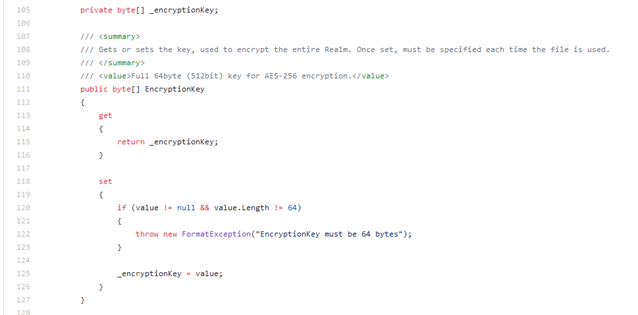
Cool - so we know we are expecting a 64byte key and that it will be used with AES-256.

I downloaded a copy of the Chipolo app on iOS from the app store on my test device and then obtained a decrypted copy of the IPA using ios_dump.py from AloneMonkey.

Next I opened the decrypted binary in Hopper and did a search for ‘crypt’.
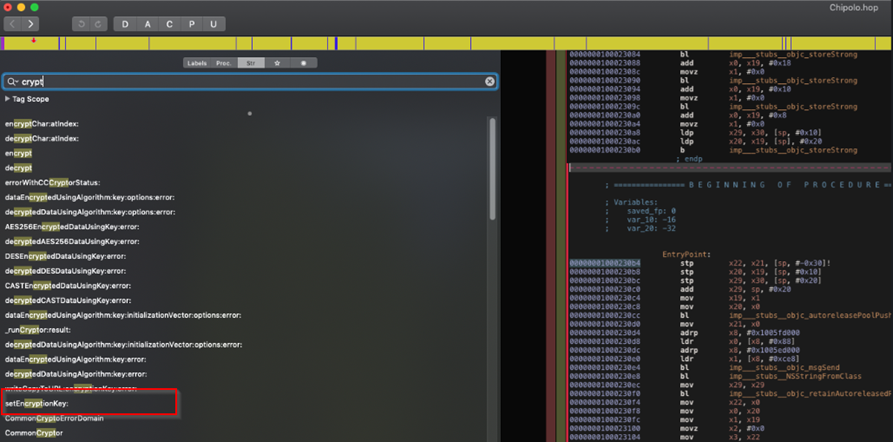
I searched for cross references to the setEncryptionKey: which sounded right in line with what I was hoping to find, and landed on the function [CPDataStore setupStore] which does this:
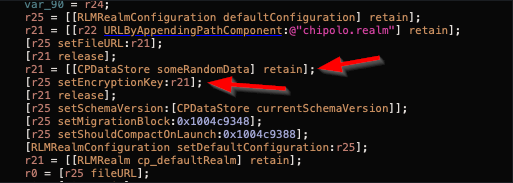
Here’s where I made the assumption: I concluded that [[CPDataStore someRandomData] retain]; was likely generating some pseudorandom data for use as a key. What I couldn’t figure out was where they were storing it, so that it could be found on the next run of the app. That should have been an alarm bell but I guess I did not expect anything that sloppy in this day and age.

I moved on from static analysis and into dynamic binary instrumentation with frida.

After setting traces on [CPDataStore encryptionKey*], I obtained a reference to the CPDataStore in memory using ObjC.Choose and arbitrarily invoked the encryptionKey getter.

Once I had my own realm database key sorted out, I set out to figure out how to compute this key for someone else. In the process, I shared my own key with Chris Vance. Chris thought to try this key on his own database, and it worked to decrypt. My mistaken assumption came to light – this app is not generating pseudorandom data to form a key. It is instead generating the SAME KEY FOR EVERY USER, also known as a hard-coded key.

How is it 2020 and folks are still using hard coded keys, you ask? Good question. But it certainly makes decoding easier.

Thanks Chris for the fun little early morning reversing project and good luck with the rest of your research!

--------------------------------------------------------------------------------------------------------------

And thank YOU Mike for figuring out the key. Bad for users to use a static key, but yay for us! Once that key is supplied the Realm database is now available to view. 


Most of the timestamps in here that I can see are going to be Unix numeric timestamps. The chipolo_id column is going to reference a numeric identifier for the Chipolo tracker assigned to my account. Without giving away all my location information, I'm going to suggest that if you ever get this far, go check out the CPDeviceRLMObject model. It had some great information about my recent locations including geolocation points and timestamps. 


One more point to mention is that the CPAuthProviderRLMObject model ended up having my login email. This could be valuable if you're trying to track what account the device information is coming back to. I've said it before and I'll say it again, these companies are obviously keeping some of this data. If you're working in law enforcement and you see a bluetooth tracker like Tile or Chipolo clipped to someone's keys, I would suggest sending them a search warrant based on this information. This Realm database will give you both the identifiers for the device(s) as well as the user. 


Well that's it for this annoying app! Keep watching this blog space because I still have Tile and TrackR to talk about from an iOS perspective.